


Clip Studio Paint
4.43.05K Reviews
App Specs
- Version
- 5.1.4
- Updated On
- License
- Free
- Downloads
- 10,000,000+
- Developer
- CELSYS,Inc.
- Categories
- Art & Design
- Platform
- Android, iOS
Screenshots
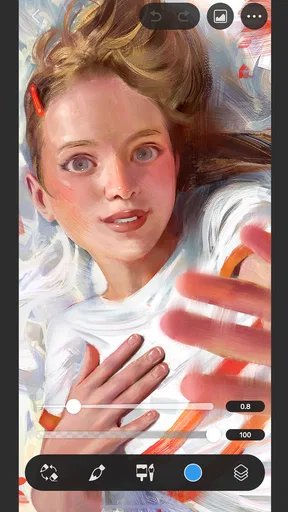
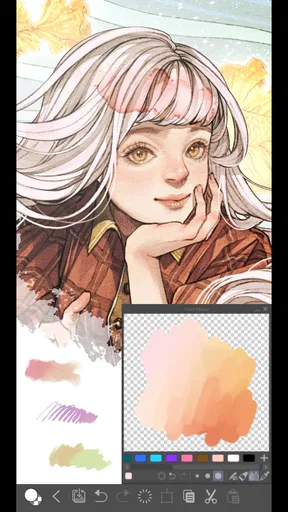
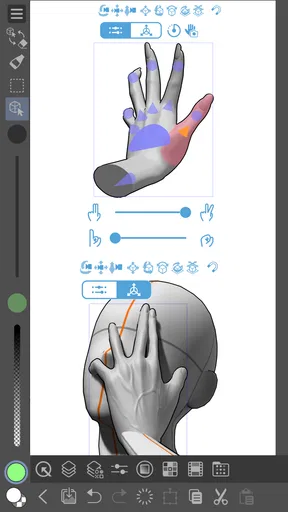
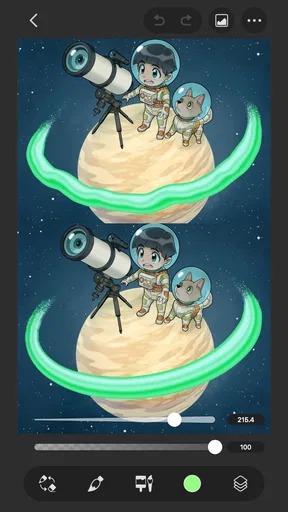
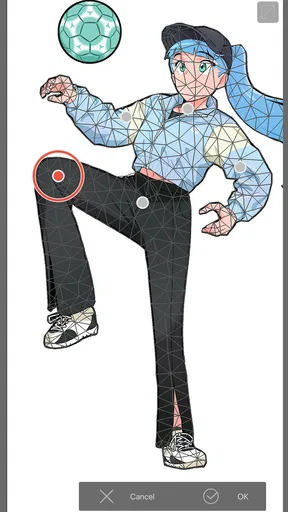
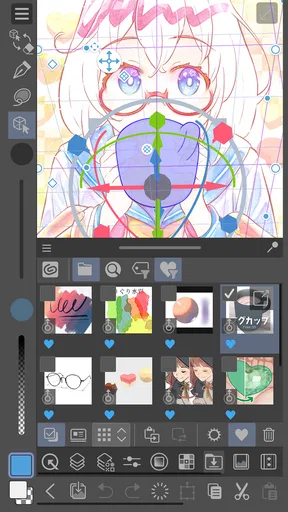

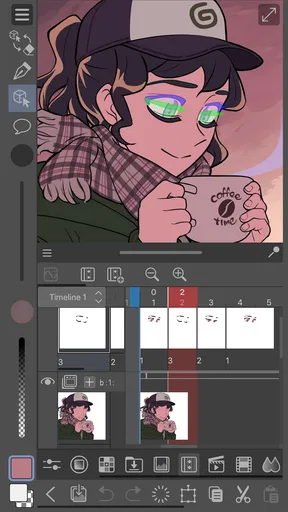
 Analysis by AppCompare
I use Clip Studio Paint as a serious drawing workspace rather than a quick filter or sketch pad, and that distinction shapes my recommendation. It is an art and design app from CELSYS, Inc., with enough depth for finished illustrations and comics, but it asks you to spend some time learning where its tools live. If you enjoy shaping a drawing from rough lines through inking and color, that investment can pay off; if you only want to doodle for a few minutes, a simpler app may feel more inviting.
A mature drawing app, not just a sketchbook
The current Android version is 4.2.2, and the app has been available since December 4, 2020. That gives me a useful frame for thinking about it: this is an established mobile art tool, not a bare-bones experiment. It is free to install, rated for Everyone, and offers in-app purchases priced from $0.99 to $119.99 per item. I would check what access suits your intended use before building a long-term workflow around it, rather than assuming every tool or usage option is included at no cost.
Its reach is also considerable: Clip Studio Paint has more than 10 million installs and an average rating of 4.5 from around 33,000 ratings. Those figures suggest that it has found a broad audience, though they do not tell me whether it will suit your style or device. I see its strongest appeal in the combination of customizable brushes, a layered canvas, and tools aimed at deliberate drawing—not in being the simplest app to open and understand.
What changes mean for a working artist
Version 4.2.2 is the current version, but a version number alone does not tell me what changed between releases, so I would not treat it as proof of a particular new feature or performance improvement. For existing users, the practical question is whether their usual brushes, layer habits, and device setup still fit the way they work. I would keep important project files organized and try unfamiliar controls on a copy before changing a well-established process.
That cautious approach matters most if you use the app across different screens. A phone can be handy for a quick line or color adjustment, while a tablet gives the canvas and controls more room. Switching between them can make an ongoing project easier to reach, but the smaller display still changes how comfortably you can manage layers and fine details. I would treat phone sessions as useful for focused edits rather than assuming they will feel identical to a full-size workspace.
Getting Started with Clip Studio Paint
So, the first thing you'll notice is how user-friendly the interface is. It doesn't bombard you with overwhelming options right off the bat. Instead, it gently introduces you to its features, which is a breath of fresh air, especially if you're new to digital art apps.
The app is available on both Android and iOS, which is super convenient if you like to switch between devices. I found the installation process to be smooth, and within minutes, I was ready to create. The app gives you a free trial, so you can explore all its goodies before committing.
Worth Reading Before You Choose

Flipboard Shows What News Apps Must Do Beyond the Feed

Switching to Android Auto Means Rethinking Your Driving Routine

Google Calendar Makes a Crowded Week Easier to Manage

Ludo King Makes the Most of the Minutes Between Plans

Baby Panda World Brings Quick Play to Modern Phones, but Its Game Library Feels Busy

ESPN’s Live Game View Makes Following Close Games Easier
Features That Stand Out
Where do I even start? The brush variety is insane! Whether you're into pencil sketches, watercolor masterpieces, or intricate inking, there's a brush for every style. And the best part? You can customize them to your heart's content. I spent a good chunk of time just playing around with different settings, and honestly, it felt like a mini adventure.
Another feature that blew me away is the layer system. It's incredibly intuitive, and if you're familiar with Photoshop, you'll feel right at home. Layers, masks, blending modes—you name it, Clip Studio Paint has it. And let’s talk about the ruler tools for a sec. If you're into creating comics or technical drawings, these rulers will be your secret weapon.
Using the tools with intention
One practical way I make those features work together is to keep the sketch, clean line work, and color on separate layers. That lets me revise a pose or shift a color without damaging the drawing underneath. I also avoid making a new layer for every tiny mark: too many layers become their own housekeeping problem, especially on a small screen. A few clearly named stages are easier to navigate than a stack of unlabeled experiments.
For comics, I would start with the ruler tools while the composition is still rough, not after every panel has been inked. Perspective guides are most useful when they help establish a scene early; they can feel restrictive if I try to force every expressive line to follow them. The same principle applies to brushes: save a customized brush once it behaves the way you like, then get back to drawing instead of repeatedly tuning settings mid-piece. The real benefit is a repeatable workflow, not endless adjustment.
Performance and Usability
Now, let's talk about performance. I was worried my device might lag, especially with high-resolution canvases, but the app handled it like a champ. No frustrating freezes or crashes, just a smooth and seamless experience. Also, the touch controls are responsive, making it easy to zoom, rotate, and navigate your canvas.
Usability-wise, I love how the app adapts to different screen sizes. Whether you're on a tablet or a smartphone, the layout feels natural and not at all cramped. Plus, there are tons of tutorials and resources available, so if you ever feel stuck, help is just a click away.
A realistic mobile workflow
Picture a short evening session after work: I have an idea for a character, but only a phone and a little time. I would block in the pose, keep the drawing loose, and use a separate layer for a few color tests. Later, on a larger screen, I could make the detailed line work more comfortable. That kind of handoff is where a full-featured art app earns its place: the phone helps me capture momentum, while the bigger workspace is better for careful finishing.
If I were working only on a phone, I would keep the canvas and layer structure modest and zoom in only when a mark needs precision. Constantly pinching, rotating, and hunting through a crowded layer stack interrupts the act of drawing. A stylus can make controlled strokes easier, but I would still try the app with my usual touch setup before deciding that a particular accessory is necessary. The right choice depends on whether your device and habits make detailed work comfortable.
Where it fits among art apps
Compared with a basic mobile sketch app, Clip Studio Paint offers a more involved workspace: brushes can be adjusted, images can be built up through layers, and rulers help with structured drawing. That is a meaningful advantage when I want to revise an illustration or construct a comic page rather than simply save a quick idea. The trade-off is that the extra controls take attention. A lightweight sketch app is a better fit for spontaneous notes, casual doodles, or someone who wants almost no setup.
It also feels closer to a desktop-style art program than to a one-purpose painting toy, especially for people already comfortable with layers and masks. That familiarity can shorten the learning curve, but it does not remove it: the mobile interface still has to fit a touch screen, and detailed tasks can feel fiddly on a phone. I would choose based on the work I actually do. For polished line art, comics, and layered illustration, the depth is useful; for a quick social post or a single rough sketch, a simpler editor may get me there faster.
Who should take the time to learn it
I would recommend it to aspiring comic artists, illustrators who revise their work in stages, and anyone who wants to experiment with brush character rather than accept one fixed set of drawing tools. It can also suit a beginner who is curious about layers and willing to learn gradually. You do not need to master every control before making something worthwhile; choosing one brush, one basic layer routine, and a small goal is a sensible way to start.
I would hesitate to recommend it to someone who expects a completely effortless interface, needs only quick photo edits, or does not enjoy organizing a canvas. It is also not automatically the best choice for long sessions on a small phone if detailed navigation becomes tiring. In those cases, a simpler drawing app or a larger-screen workflow may be a better match than trying to use every advanced tool.
Questions worth settling before a project
Can a beginner use it? Yes, but I would begin with a short exercise—such as a small sketch with separate line and color layers—instead of trying to understand the entire workspace at once. Is it useful on a phone? Yes for capturing ideas and making focused edits, though a tablet or other larger screen is more comfortable for prolonged, precise work. Does it suit comics? Its rulers and layered workflow make it a strong candidate for that kind of drawing, while the actual comfort of panel work depends on screen size and personal workflow.
Is it free? It is free to install, but in-app purchases are available, so I would review the current options and choose based on how I plan to use it. Should I move an existing project into it? I would test the process with a duplicate first and check that the parts of the project I care about remain manageable. These are small precautions, but they help avoid discovering a workflow mismatch after investing hours in a piece.
Final Thoughts
In a nutshell, Clip Studio Paint is a powerhouse app that caters to both beginners and seasoned artists. It's packed with features that can transform your creative process, yet it's accessible enough not to scare you off. Whether you’re sketching on the go or working on detailed illustrations, this app has got you covered.
So, if you're ready to take your digital art game to the next level, give Clip Studio Paint a whirl. You might just fall in love with the endless possibilities it offers. And hey, happy creating!
What I would watch as it evolves
For anyone deciding whether to settle into it, I would pay attention to how future versions affect the parts of the workflow that matter most: drawing comfort on your device, the tools you rely on, and the way you manage ongoing projects. The present version is 4.2.2, but I would separate that confirmed current state from any expectation that a later release will solve a particular issue. A useful update is one that improves your own routine, not simply one with a higher number.
My overall advice is to test a small, representative piece before committing to a major project. Try a sketch, a few customized strokes, a layer adjustment, and—if you draw structured scenes—a ruler-guided section. That short trial tells you more than browsing a long tool list: you can judge whether the controls suit your hands, whether the workspace feels comfortable on your screen, and whether the purchase options make sense for the way you intend to draw. For an artist who wants a capable mobile studio and is willing to learn its habits, it is well worth exploring; for someone who values instant simplicity above depth, I would look elsewhere.
Pros
- Highly customizable brushes.
- Cross-platform functionality.
- Supports multiple file formats.
- Great for both beginners and pros.
- Frequent updates and new features.
Cons
- Steep learning curve for newcomers.
- Subscription model may deter some users.
- Resource-intensive on older devices.
- Limited text editing capabilities.
- Occasional performance issues.
FAQs for Clip Studio Paint
What platforms is Clip Studio Paint available on?
Clip Studio Paint is available on Windows, macOS, iOS, Android, and Chromebook. This wide range of compatibility ensures that users can access their creativity across different devices. Whether you're using a desktop, tablet, or smartphone, Clip Studio Paint provides a seamless experience with consistent features.
Is Clip Studio Paint suitable for beginners?
Yes, Clip Studio Paint is suitable for beginners as well as professional artists. It offers a user-friendly interface and a variety of tutorials and resources to help new users get started. The app also includes customizable tools and brushes, making it easy for beginners to experiment and find what works best for them.
What are the key features of Clip Studio Paint?
Clip Studio Paint offers a plethora of features including advanced brush customization, 3D models, vector layers, and animation tools. It supports both raster and vector graphics and provides tools for comic and manga creation, such as panel layouts, speech bubbles, and screen tones. These features make it a versatile tool for digital artists.
Does Clip Studio Paint require a subscription?
Clip Studio Paint offers both one-time purchase and subscription options. Users can choose a perpetual license for desktop versions or opt for a subscription plan, which is more common for mobile versions. Subscriptions often provide more flexibility and access to additional features, updates, and cloud storage.
Can I sync my projects across devices with Clip Studio Paint?
Yes, Clip Studio Paint allows you to sync your projects across multiple devices. By using the Clip Studio cloud service, you can save your work and access it on any compatible device. This feature is particularly useful for artists who work on different platforms and need to maintain consistency in their projects.


